Use ip -br address for a compact list of Linux interfaces and addresses. Inspect the default gateway with ip route show and the selected route for one destination with ip route get. The examples then separate temporary changes from persistent configuration and compare the older ifconfig tool.
Even if ifconfig: command not found appears, it does not mean that the IP address cannot be searched. ifconfig is included in the net-tools package, and ip belongs to the separate iproute2 toolset. The example below focuses on the Rocky Linux 9 series and Ubuntu 24.04, and explains everything from inquiry to temporary change.
On this page
Frequently used ip commands
At first, it is convenient to check the address, interface status, and path with the three commands below. Query commands can be run as a normal user. -br is an option that briefly displays the results.
ip -br address
ip -br link
ip route show| What to check | command |
|---|---|
| full IP address | ip address show |
| IPv4 address of ens192 | ip -4 address show dev ens192 |
| default gateway | ip -4 route show default |
| route to a specific destination | ip route get 203.0.113.10 |
| IP/MAC support for the same link | ip neigh show |
| Receiving/transmitting statistics | ip -s link show dev ens192 |
The command has the form ip [옵션] 대상 동작. address covers the IP address, link covers the network interface, and route covers the route. After dev, write the target interface name. It can be abbreviated as ip a, ip addr, and ip address, but the meaning is explained below for easy reading. A list of options and targets can be found in the ip manual.
Replace ens192 in the example with ens160, enp0s3, eth0, etc. in the actual system. First, check the name at ip -br link. 192.0.2.0/24, 198.51.100.0/24, and 203.0.113.0/24 are the address bands for the document of RFC 5737, so enter the value of the network to be used in the actual equipment settings.
Install ip and ifconfig packages
It is easy to get confused as the command name and package name are different. Even if you only need ifconfig, the package name to install is net-tools. ip The package name varies depending on your distribution.
| series | ip provided package | ifconfig provided package |
|---|---|---|
| Rocky Linux·RHEL | iproute | net-tools |
| Ubuntu·Debian | iproute2 | net-tools |
Rocky Linux·RHEL
This is an example of installing both tools. If you already have ip and only want to add ifconfig, you can install it as sudo dnf install net-tools. You must have access to an active distribution repository.
sudo dnf install iproute net-toolsUbuntu·Debian
Update the package list and install it. If you only need ifconfig, you can leave out iproute2 from the second command.
sudo apt update
sudo apt install iproute2 net-tools
After installation, check the executable and actual hits. In the root shell, omit sudo from the installation command. For package confirmation data, please refer to Debian net-tools package and Debian iproute2 file list.
command -v ip
command -v ifconfig
ip -V
ifconfig -a
If you install it and it doesn’t find ifconfig only in your normal user shell, check your PATH, i.e. the executable search path. In environments where /usr/sbin is missing, it can be run as /usr/sbin/ifconfig -a. You don’t necessarily have to switch to the administrator shell to look it up.
Check IP address and read output
To see the address of a specific interface in detail, use address show. -4 outputs only IPv4, and -6 outputs only IPv6.
ip address show dev ens192
ip -4 address show dev ens192
ip -6 address show dev ens192
For example, you might see an IPv4 address line like the one below: This is an illustrative excerpt; actual addresses may vary in different environments.
inet 192.0.2.10/24 scope global ens192192.0.2.10 is the address of the corresponding interface. /24 is the CIDR notation that the network part is 24 bits, and corresponds to the subnet mask 255.255.255.0. scope global means that it is not an address restricted to the link local/host range, and this mark alone cannot determine whether a public IP or Internet connection is possible.
If there are multiple addresses on an interface, check the inet or inet6 line for each. Addresses with dynamic are distinct from permanent addresses, but do not judge the origin of any address based on that mark alone. Just because there is a link-local address starting with IPv6’s fe80:: does not mean that external IPv6 communication is possible. The address attribute is read based on the ip-address manual.
Check interface status and statistics
A network interface is a connection point handled by the operating system. This includes not only physical NICs, but also virtual machine NICs, bridges, and virtual interfaces for containers. Check the status and MAC address with the following command.
ip -br link
ip link show dev ens192
In physical Ethernet, the UP flag indicates that the flag is administratively enabled, and LOWER_UP indicates that the sublink is up. If you see state DOWN or NO-CARRIER, check whether the interface is disabled, the cable/switch port, and the virtual machine NIC connection. Loopback or state UNKNOWN on some virtual interfaces is not immediately considered a failure.
To see the reception and transmission counters, add -s. RX is reception, TX is transmission, and errors and dropped are clues to check for errors and discarded packets, respectively.
ip -s link show dev ens192It does not confirm the current fault simply because the error counter is greater than 0. Execute the same command again after a while, compare whether the number continues to increase, and check the status of the equipment and driver. Status changes and statistics options are described in the ip-link manual.
Check default gateway and destination route
The routing table is a list that determines which interface and next device to send packets to for each destination. First check the IPv4 route and default route.
ip route show
ip -4 route show default
If the default route is displayed as below, it means that destinations without other specific routes will be sent via ens192 to 192.0.2.1.
default via 192.0.2.1 dev ens192However, if you only look at the basic route, you may miss more specific routes that apply to specific destinations. In fact, the path chosen by the kernel is checked by specifying the destination.
ip route get 203.0.113.10Below is an example output from an environment with the default paths above: via is the next hop gateway, dev is the egress interface, and src is the selected source address. Additional information such as user ID has been omitted.
203.0.113.10 via 192.0.2.1 dev ens192 src 192.0.2.10ip route get is a query that calculates the path. Since the actual packet is not sent to the destination or the response is not confirmed, the firewall, server, and external communication cannot be judged to be normal based on this result alone. For operation and output items, refer to ip-route manual .
On servers using policy routing, routes vary depending on the origin or a separate rule. The default ip route show looks at the main routing table, so if it’s not what you expect, it also checks the rules and other tables. The IPv6 route is searched separately with -6.
ip rule show
ip route show table all
ip -6 route show
Check devices on the same link: ip neigh
The neighbor table stores connection information such as IP addresses and MAC addresses for communication on the same link. In IPv4, it corresponds to the ARP table, and IPv6 neighbor information can also be checked with ip neigh.
ip neigh show
ip neigh show dev ens192| status | How to read |
|---|---|
REACHABLE | Neighbors who have recently confirmed that you can reach them |
STALE | Cache items at which point it is time to check again for reachability. |
INCOMPLETE·FAILED | Address verification is in progress or failed |
STALE itself does not mean a communication failure. If there is no traffic, the table may be empty. External destinations usually check the gateway entry on the same link instead of the destination server’s MAC. The exact definition of the status can be found in the ip-neighbor manual.
Example of temporarily changing IP address, path, and link
This section actually changes the network settings. The commands below are independent examples, each picking out what you need to do. Unlike inquiry, administrator privileges are required, and the connection may be lost if the interface being connected via SSH is turned off or the address/path in use is deleted. Run in a lab environment with another access path, such as a virtual machine console.
Adding and deleting secondary IPv4 addresses
This is an example of adding 192.0.2.10/24 to ens192 and 192.0.2.20 of the same band. In a real environment, you would first check if the address is empty and if you plan to use the network. add does not replace the existing address, but adds a new address.
sudo ip address add 192.0.2.20/24 dev ens192
ip -4 address show dev ens192
When the exercise is complete, delete only the address you added. Specify the same address, prefix length and interface used when adding it. Do not use ip address flush for this operation, because it can remove multiple addresses at once.
sudo ip address del 192.0.2.20/24 dev ens192
ip -4 address show dev ens192
Adding and deleting routes to specific networks
Assume ens192 is connected to 192.0.2.0/24, and router 192.0.2.1 on the same link can forward to 198.51.100.0/24. Change the destination band and gateway according to your actual configuration.
sudo ip route add 198.51.100.0/24 via 192.0.2.1 dev ens192
ip route get 198.51.100.10
Check via 192.0.2.1 and dev ens192 in the query results. This command only adds a route to my server, so it doesn’t configure the router’s forwarding settings or the return route on the other side. To remove a lab path, delete it with the same conditions.
sudo ip route del 198.51.100.0/24 via 192.0.2.1 dev ens192Disabling and activating interfaces
To disable the lab interface, use down. Do not run it on the interface carrying your SSH connection. Do not assume you will still be able to enter the following up command remotely.
sudo ip link set dev ens192 downRe-enable it in the console and check the status. up is an operation that administratively activates the interface, and does not in itself create a new DHCP address or DNS settings.
sudo ip link set dev ens192 up
ip -br link show dev ens192
JSON output for scripts and change monitoring
In automation, truncating blank positions in screen output can affect the number of addresses or output format. You can receive and process the JSON structure with -j. If you need a separate tool to process JSON, install that tool separately.
ip -j address show dev ens192When you want to see the moment a link, address, or path changes, execute a monitoring command. There may be no message until a change occurs, and when you exit, press Ctrl+C.
ip monitor link address routeMonitoring shows network state changes as described in the ip-monitor manual. It is not a function to capture the content of packets.
Difference between ip and ifconfig
When creating new Linux operating procedures, if you learn ip as a standard, it will be easier to handle address, link, path, and neighbor information using the same command system. If an existing script or old document requires ifconfig, you can additionally install net-tools and use it together. Installing a package alone does not change your current network setup in any way.
| Compare items | ip | ifconfig |
|---|---|---|
| main scope | Address, link, route, neighborhood, policy routing, etc. | Focus on interface status/address settings |
| address expression | CIDR prefix, multiple address lookup | IPv4 usually displays address and netmask. |
| Output for automation | -j JSON support | net-tools ifconfig does not have same JSON option |
| IPv6 | Search and set with -6 | IPv6 support. Not an IPv4-specific command |
ifconfig shows active interfaces when run without options, while ifconfig -a also includes inactive interfaces. ip address show is convenient when checking all IP addresses. The path/ARP commands below are not options for ifconfig, but are separate commands from the same net-tools package. The behavior and known constraints can be found in the ifconfig manual.
| work | net-tools series | ip response command |
|---|---|---|
| Interface/Address Search | ifconfig -a | ip address show |
| Lookup a specific interface | ifconfig ens192 | ip address show dev ens192 |
| Interface Activation | sudo ifconfig ens192 up | sudo ip link set dev ens192 up |
| Disable interface | sudo ifconfig ens192 down | sudo ip link set dev ens192 down |
| interface statistics | ifconfig ens192 | ip -s link show dev ens192 |
| routing table | route -n or netstat -rn | ip route show |
| IPv4 ARP table | arp -n | ip -4 neigh show |
The correspondence table is intended to find similar operations, but does not mean that the output format will be exactly the same. In particular, if there are multiple IPv4 addresses on the interface, it is difficult to determine all addresses just by outputting ifconfig. And when replacing netstat for connection/port inquiry, use ss from the iproute2 toolbar rather than ip. The correspondence relationship is also provided in the netstat manual .
Common errors encountered during execution
| Error/Situation | Items to check |
|---|---|
ip: command not found | Install iproute or iproute2 and PATH |
ifconfig: command not found | net-tools installation and /usr/sbin search path |
Cannot find device | Actual interface name as shown in ip -br link |
RTNETLINK answers: Operation not permitted | Permission to change settings. Even if the container is root, network management rights may be restricted. |
RTNETLINK answers: File exists | First check whether the address/route you want to add already exists. |
Nexthop has invalid gateway | Verify that the gateway has direct reachable bandwidth on its interface |
To eliminate errors, existing addresses or default routes are not cleared first. Check the current address and route and check if the additional destination is correct. If a gateway error occurs, check the address prefix and gateway/interface combination before forcing it to onlink.
To persist even after reboot:
The current state of the kernel replaced by ip address add, ip route add, and ifconfig is not automatically saved in the persistent configuration file or connection profile. They may disappear or be overwritten upon reboot or when a management service such as NetworkManager reapplies the connection. ip is not even a command to set up a DNS server.
Permanent addresses and DNS are managed by nmtui·nmcli static IP settings on Rocky Linux or Netplan static IP settings on Ubuntu. To maintain routes for specific bands, you can continue with the profile/configuration file procedures in Rocky Linux Static Routing and Ubuntu Static Routing.
If your purpose is to check the address and route, try starting with ip -br address and ip route get 목적지_IP. If you need to change the value, have a way to maintain the current connection, and choose between a temporary command and a permanent setting depending on whether you need the setting across reboots.
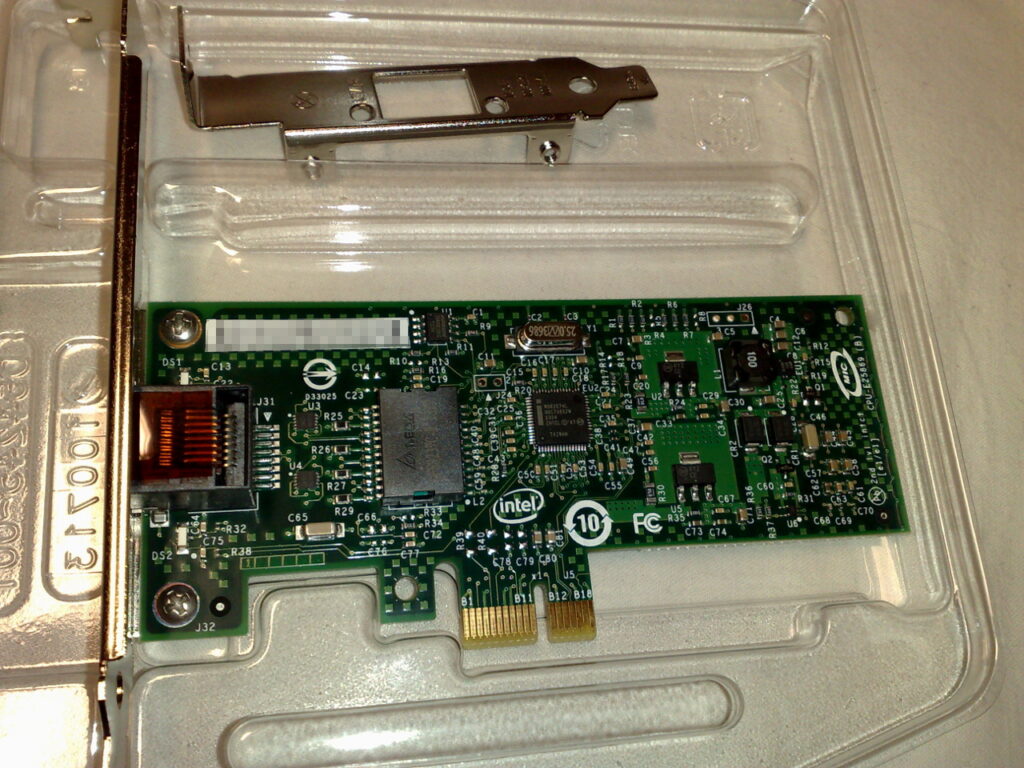
Checked on: October 23, 2026. We confirmed package installation, lookup, addition and deletion of secondary addresses and static routes, virtual interface up and down, JSON output and change monitoring in isolated containers of Rocky Linux 9 series and Ubuntu 24.04. Failure of the physical NIC, actual communication to external destinations, and persistence after host reboot were not included in the validation scope of this exercise. The representative photo is a reference photo of the network card and is not a photo of the practical equipment.