When you first install PostgreSQL, the difficult part is often deciding which identity connects through which path. This guide is for beginners setting up a new Rocky Linux 9 server and separating database administration from application access.
The answer to a common concern comes first: creating another superuser does not automatically disable the existing postgres role or access from the operating system. Whether psql -U postgres works depends on the OS user, the socket or TCP connection path, and the authentication rules in pg_hba.conf.
dba_admin is not a system account created automatically during installation. It is an example name for the administrator database role you will create in this guide. app_runtime is also a regular application account created later. Neither requires a Linux user with the same name.
After installation, follow create a superuser, create the application account, and back up and restore. Bash commands run in an OS terminal; SQL and backslash commands run inside psql.
On this page
Version and installation choices
On October 25, 2026, the latest stable release listed by the project is PostgreSQL 18.6. PostgreSQL 19 RC 1 is a release candidate and is not the installation target here. The RPM instructions install the repository’s current patch release for major version 18. The container example pins postgres:18.6 for reproducibility. Check the official release list again when installing later.
| Item | Native installation: PGDG RPM | Container: Docker Compose |
|---|---|---|
| Process and log management | systemd and journalctl | docker compose |
| Data location | Default /var/lib/pgsql/18/data | Named volume mounted at /var/lib/postgresql |
| Host port in this guide | 5432 | 15432 → container port 5432 |
| A useful starting point | Learning Linux service management | Managing an app and DB with Compose |
Choose one method. If you try both, keep ports and storage separate. These instructions create a new database cluster in an empty data directory; they are not an upgrade procedure for an existing database. Here, a cluster means the collection of databases managed by one PostgreSQL server.
Native installation with PGDG packages
Check the Rocky 9 minor release
The PGDG download page supports Rocky Linux, but the supported minor releases change. If an old 9.x installation receives a repository 404, check the Rocky version before disabling GPG checks or substituting an unrelated repository. The RPM verification environment for this guide is Rocky Linux 9.8 x86_64.
Run the following on a new server. For an existing production server, review service impact and the reboot window before updating all packages.
cat /etc/rocky-release
uname -m
sudo dnf upgrade --refresh -y
Reboot before continuing if updated packages, such as the kernel, require it. The repository URL below selects the architecture using uname -m. Compare its architecture and minor release with the official download selector.
Add the repository and initialize the cluster
sudo dnf install -y "https://download.postgresql.org/pub/repos/yum/reporpms/EL-9-$(uname -m)/pgdg-redhat-repo-latest.noarch.rpm"
sudo dnf -qy module disable postgresql
sudo dnf install -y postgresql18 postgresql18-server

sudo env PGSETUP_INITDB_OPTIONS='--encoding=UTF8 --locale=C.UTF-8' /usr/pgsql-18/bin/postgresql-18-setup initdb
sudo systemctl enable --now postgresql-18
sudo systemctl status postgresql-18 --no-pager
Disabling the distribution’s PostgreSQL module avoids mixing it with PGDG packages. The initialization options explicitly select UTF-8 for multilingual data and the C.UTF-8 locale. Review the required locale and collation before initialization if your application depends on particular sorting rules.
initdb initializes a new data area; it is not a command to repeat against existing data. If it reports that data already exists, investigate the previous installation rather than deleting the directory.
Connect as the initial administrator with the command below. Native installation examples use the full executable path to avoid accidentally selecting another version of psql.
sudo -u postgres /usr/pgsql-18/bin/psql -X -d postgresThis runs the client as the OS user postgres and connects as the database role with the same name. Inspect the actual local authentication rules after installation. The PGDG package information and installed service file define the package’s paths.
Container installation with Docker Compose
Prepare Docker and a working directory
If Docker Engine and the Compose plugin are already installed, start with the version checks. On a new Rocky server, the following follows the Rocky Linux Docker guide and Docker RPM installation documentation. If existing Podman or Docker compatibility packages conflict, inspect running workloads before removing packages.
sudo dnf install -y dnf-plugins-core
sudo dnf config-manager --add-repo https://download.docker.com/linux/rhel/docker-ce.repo
sudo dnf install -y docker-ce docker-ce-cli containerd.io docker-buildx-plugin docker-compose-plugin
sudo systemctl enable --now docker
sudo docker version
sudo docker compose version
Create a working directory and an initial administrator password file. Keep the generated password in a secure password manager as well. Docker administration grants extensive access to containers and their data.
sudo install -d -m 700 -o "$(id -un)" -g "$(id -gn)" /opt/postgresql18
cd /opt/postgresql18
mkdir -m 700 secrets
umask 077
openssl rand -hex 32 > secrets/pg_admin_password.txt
Save the following as /opt/postgresql18/compose.yaml. It supplies the password through a file backed Compose secret and publishes port 15432 only on the host’s loopback address. This secrets configuration does not automatically encrypt the source file.
services:
  db:
    image: postgres:18.6
    restart: unless-stopped
    environment:
      POSTGRES_USER: postgres
      POSTGRES_DB: postgres
      POSTGRES_PASSWORD_FILE: /run/secrets/pg_admin_password
      POSTGRES_INITDB_ARGS: --auth-host=scram-sha-256
      POSTGRES_HOST_AUTH_METHOD: scram-sha-256
    secrets:
      - pg_admin_password
    ports:
      - "127.0.0.1:15432:5432"
    volumes:
      - pgdata:/var/lib/postgresql
    healthcheck:
      test: ["CMD-SHELL", "pg_isready -U postgres -d postgres"]
      interval: 10s
      timeout: 5s
      retries: 5

volumes:
  pgdata:

secrets:
  pg_admin_password:
    file: ./secrets/pg_admin_password.txt
The PostgreSQL 18 official image mounts its data volume at /var/lib/postgresql. Its default PGDATA is /var/lib/postgresql/18/docker. Do not copy the /var/lib/postgresql/data mount from examples for version 17 or earlier. The official image documentation describes this change and its initialization variables.
Start the database and connect as administrator
cd /opt/postgresql18
sudo docker compose config --quiet
sudo docker compose up -d --wait
sudo docker compose ps
sudo docker compose logs --tail=50 db
sudo docker compose exec db psql -X -U postgres -d postgres
A healthy pg_isready check means the server is ready to accept connections. It does not validate your application password or table permissions. Once connected, inspect the actual version and paths.
SELECT version();
SHOW data_directory;
SHOW hba_file;
POSTGRES_USER creates the initial superuser during first initialization. Using an application name here can make the application a superuser, so keep it an administrative identity. Changing POSTGRES_PASSWORD_FILE or initialization SQL and restarting the container does not update roles or passwords in an existing volume. Change existing passwords with SQL or \password.
docker compose down removes the containers and network while retaining named volumes. down -v deletes the database volume, so do not use it for a routine shutdown or password reset. See the volume removal conditions in the Compose down reference.
OS users, database roles, and psql connections
psql is a client for connecting to PostgreSQL. OS users and database identities are separate. PostgreSQL uses roles for both login identities and collections of privileges. A role with LOGIN can authenticate; a NOLOGIN role can own objects or group permissions. Role names are shared across the cluster rather than belonging to just one database. See role attributes and database and schema structure.
| Item | Meaning | Examples |
|---|---|---|
| OS user | Linux identity running a process | root, postgres |
| Database role | Identity with login, ownership, or privileges inside PostgreSQL | postgres, dba_admin, app_runtime |
| Database | Data space selected for a connection | postgres, appdb |
| Schema | Namespace grouping tables and other objects inside a DB | public, app |
The difference between sudo -u and psql -U
Here, lowercase -u belongs to sudo, while uppercase -U belongs to psql. sudo -u selects the Linux user that runs the command; psql -U selects the database role used for the connection. Options are case sensitive, so read each one together with the program it belongs to.
| Command and option | Selected identity or target | Meaning |
|---|---|---|
sudo -u postgres | OS user | Run the following command as the Linux user postgres |
psql -U postgres | Database role | Request a connection as the PostgreSQL role postgres |
psql -d postgres | Database | Select postgres as the database to connect to |
The sudo manual documents sudo -u. In psql, the option for selecting the connection user is uppercase -U; lowercase -u cannot replace it.
The command structure is psql -U role_name -d database_name. -U selects the role; it does not bypass authentication. On a typical Linux installation, omitting -h selects a Unix socket, while -h 127.0.0.1 selects TCP. Environment variables can change defaults, so explicit addresses, roles, and database names make exercises easier to follow.
# RPM: local socket, OS user postgres
sudo -u postgres /usr/pgsql-18/bin/psql -X -U postgres -d postgres

# RPM: TCP password login, after configuring the role and HBA below
/usr/pgsql-18/bin/psql -X -h 127.0.0.1 -p 5432 -U dba_admin -d postgres -W

# Container: run psql inside the container
sudo docker compose exec db psql -X -U postgres -d postgres

# Container: TCP password login from the host, if the PG18 client is installed
/usr/pgsql-18/bin/psql -X -h 127.0.0.1 -p 15432 -U dba_admin -d postgres -W
The three occurrences of postgres in the first command identify the Linux user → database role → database, respectively. It runs psql as the OS user postgres, then requests a connection as the database role postgres to the database postgres. These are separate identities and targets even though their names match.
Omitting -d can make the client look for a database with the same name as the role, resulting in database "dba_admin" does not exist. -W requests a password prompt; it does not change the server’s authentication method. The psql manual documents these options and defaults.
Create your own superuser: dba_admin and login
You may choose a different name instead of dba_admin. Create a new superuser while connected as an existing superuser. An ordinary role with only CREATEROLE cannot create another superuser. See the SUPERUSER requirement in CREATE ROLE.
1. Open psql as the existing postgres administrator
Run the line for your installation method in an OS terminal. For containers, run it from the Compose working directory, /opt/postgresql18.
# RPM installation
sudo -u postgres /usr/pgsql-18/bin/psql -X -U postgres -d postgres

# Container installation: run from the Compose directory
sudo docker compose exec db psql -X -U postgres -d postgres
2. Create the superuser and assign a password
Run this in the postgres administrator session for either installation method. These are commands inside psql, not commands for the OS shell.
CREATE ROLE dba_admin LOGIN SUPERUSER;Then assign a password. \password is a psql command and takes no trailing semicolon. Enter the password twice at the prompts instead of putting it directly into a SQL statement.
\password dba_admin
\du
dba_admin can administer every database; do not put its credentials in application settings. An administrator can later use \password dba_admin or \password app_runtime to rotate passwords. A regular user can run \password to change their own password. The OS command passwd postgres changes the Linux password, not the database password.
A newly created role without a password needs one before password authentication can work. Conversely, setting a password does not force peer or trust connections to check it. See CREATE ROLE and password authentication.
3. Log in again with the new administrator account
Keep the original postgres session open and connect from a new OS terminal. Create dba_admin and assign its password first. If the RPM connection is rejected, apply the loopback SCRAM rules in the pg_hba.conf section below and retry.
# RPM: TCP connection to the host service
/usr/pgsql-18/bin/psql -X -h 127.0.0.1 -p 5432 -U dba_admin -d postgres -W

# Container: TCP connection inside the DB container
sudo docker compose exec db psql -X -h 127.0.0.1 -p 5432 -U dba_admin -d postgres -W
The database port inside the container is 5432; 15432 is the published port used from the host. In the new psql session, check the current user and superuser attributes.
SELECT current_user, current_database();
SELECT rolname, rolcanlogin, rolsuper
FROM pg_roles
WHERE rolname IN ('postgres', 'dba_admin');
current_user should be dba_admin, and its rolcanlogin and rolsuper values should both be t. CREATE ROLE creates a database role, not a Linux user or a database with that name. This is why the connection explicitly selects -d postgres.
Does another superuser disable postgres access?
No. CREATE ROLE dba_admin ... adds a role. The existing postgres role retains its login attribute, password, and authentication rules.
RPM: peer authentication checks the OS identity
With local all postgres peer in pg_hba.conf, the OS user postgres can connect as the database role postgres. No database password is requested because peer authentication checks the OS identity. Without a user mapping, running only psql -U postgres as OS user root fails because the names differ.
However, root and operators allowed to run sudo -u postgres can switch to the OS identity. Changing the DB password or the superuser’s name cannot exclude server root from the database. Manage OS, sudo, and Docker administrative access too.
Containers: distinguish local trust from TCP
The Compose configuration above requires SCRAM password authentication for incoming TCP connections. However, the official image defaults to trust for Unix sockets inside the container. Consequently, docker compose exec db psql -U postgres -d postgres can connect without a database password. POSTGRES_HOST_AUTH_METHOD does not also replace that local socket rule. The official image entrypoint also shows the initialization logic.
| Attempt | What determines the result in this guide |
|---|---|
RPM: sudo -u postgres ... psql | Works without a password if the postgres peer rule matches |
RPM: OS root runs psql -U postgres | Peer names differ, so it fails; switching users through sudo is separate |
Inside container: psql -U postgres | Works without a password when the default socket trust rule matches |
psql -h 127.0.0.1 ... -U dba_admin | TCP HBA rules and the dba_admin password |
New connection after ALTER ROLE postgres NOLOGIN | Direct new login as postgres fails; existing sessions remain |
A privileged role may still use SET ROLE to become a NOLOGIN role, so it is not a way to exclude an OS administrator. Rather than deleting the initial superuser, beginners can retain a local recovery path through postgres and separate human administration from application access. Before using NOLOGIN, verify a fresh login as the other administrator and review backup and recovery tooling. See ALTER ROLE.
Organize authentication in pg_hba.conf
RPM: peer for postgres, SCRAM for other roles
Keep the administrator session open and inspect the actual paths. The paths used below are PGDG defaults; the SHOW results take precedence.
SHOW hba_file;
SHOW config_file;
SHOW password_encryption;
In another OS terminal, back up the original and edit it.
sudo cp -a /var/lib/pgsql/18/data/pg_hba.conf /var/lib/pgsql/18/data/pg_hba.conf.before-app
sudoedit /var/lib/pgsql/18/data/pg_hba.conf
The following rules cover local connections in this guide. Review and replace the existing ordinary local and loopback host rules, making sure broader trust or ident rules do not precede them. Preserve replication or backup rules after checking their purpose.
# TYPE  DATABASE  USER       ADDRESS         METHOD
local   all       postgres                   peer
local   all       all                        scram-sha-256
host    all       all        127.0.0.1/32     scram-sha-256
host    all       all        ::1/128          scram-sha-256
HBA uses the first matching rule. A failed authentication attempt does not fall through to the next rule. If an existing password uses an old MD5 verifier, changing the HBA rule to SCRAM is insufficient: inspect password_encryption and reset that role’s password as needed. The HBA documentation explains rule order and matching.
Check the file for syntax errors in the administrator session, then request a reload.
SELECT line_number, error
FROM pg_hba_file_rules
WHERE error IS NOT NULL;

SELECT pg_reload_conf();
The error query should return zero rows. A true result from pg_reload_conf() means a reload signal was sent; it does not prove that every setting was accepted. Check server logs and test new dba_admin and application connections in another terminal before closing the existing administrator session. pg_hba_file_rules shows the current file, not proof of the last rules loaded by the server. See the view documentation.
Restrict local connections inside the container
To replace default trust, first back up and then edit the actual HBA file reported by SHOW hba_file inside the container. Use only the two local lines from the RPM example to configure peer for postgres and SCRAM for other socket users. Do not overwrite the container’s entire HBA file with the RPM example. Specify the OS user for recovery access too.
sudo docker compose exec --user postgres db psql -X -U postgres -d postgresKeep or restrict existing TCP rules for other containers and the host separately. Even when the host connects through its 127.0.0.1 published port, the database may see a Docker bridge address as the client. Check SELECT inet_client_addr(); before narrowing HBA addresses. After requesting a reload as below, verify new connections. Editing POSTGRES_PASSWORD_FILE does not replace an HBA configuration change.
sudo docker compose exec --user postgres db psql -X -U postgres -d postgres -c 'SELECT pg_reload_conf();'Create a regular application account: app_runtime and privileges
The regular login account to configure in your application is app_runtime. The CREATE ROLE app_runtime LOGIN NOSUPERUSER ... line below creates it, and \password app_runtime assigns its password. This name is also an example, not an automatically installed account.
Run this section in order inside an administrator psql session as the new dba_admin or the existing postgres. Creating the account alone does not grant access to the application’s database, schema, and tables; complete the privilege steps too.
Giving an application superuser access may hide permission errors, but it increases the impact of application failures and credential exposure. This setup separates ownership from everyday execution in a dedicated app schema in appdb.
| Role | Login | Purpose |
|---|---|---|
| app_owner | No | Owns the DB, schema, and tables |
| app_migrator | Yes | Becomes app_owner to run deployment DDL |
| app_runtime | Yes | Application SELECT, INSERT, UPDATE, and DELETE |
| app_reader | Yes | Read access only |
DDL means commands that change structure, such as CREATE TABLE and ALTER TABLE. If a product runs automatic migrations at startup, first check whether these can move into a separate deployment step. The following examples use new role and database names; they are not an idempotent setup script.
1. Create regular login accounts and assign passwords
Run this as postgres or dba_admin in psql. Set a different password for each login role using \password.
CREATE ROLE app_owner NOLOGIN;
CREATE ROLE app_migrator LOGIN NOSUPERUSER NOCREATEDB NOCREATEROLE NOREPLICATION NOBYPASSRLS;
CREATE ROLE app_runtime LOGIN NOSUPERUSER NOCREATEDB NOCREATEROLE NOREPLICATION NOBYPASSRLS;
CREATE ROLE app_reader LOGIN NOSUPERUSER NOCREATEDB NOCREATEROLE NOREPLICATION NOBYPASSRLS;
GRANT app_owner TO app_migrator;
\password app_migrator
\password app_runtime
\password app_readerDo not grant app_owner membership to app_runtime. Only the migration identity needs to become the owner. Everyday applications do not need CREATEDB or CREATEROLE either.
2. Create the application database and grant connection access
After creating login roles and assigning passwords, create the database in the same administrator session. app_owner holds ownership, while the running application connects as app_runtime.
CREATE DATABASE appdb OWNER app_owner;
REVOKE ALL ON DATABASE appdb FROM PUBLIC;
GRANT CONNECT ON DATABASE appdb TO app_migrator, app_runtime, app_reader;
ALTER ROLE app_runtime IN DATABASE appdb SET search_path = app;
ALTER ROLE app_reader IN DATABASE appdb SET search_path = app;
PUBLIC is the privilege target representing all database roles. Revoke default database access and grant CONNECT to the intended accounts. Database connection privileges and table privileges are separate: GRANT ALL ON DATABASE alone does not grant access to tables. See GRANT.
3. Configure schema and table privileges
Switch the same administrator session to appdb. Run the following schema configuration inside appdb.
\connect appdbREVOKE CREATE ON SCHEMA public FROM PUBLIC;
CREATE SCHEMA app AUTHORIZATION app_owner;
GRANT USAGE ON SCHEMA app TO app_runtime, app_reader;
ALTER DEFAULT PRIVILEGES FOR ROLE app_owner IN SCHEMA app
GRANT SELECT, INSERT, UPDATE, DELETE ON TABLES TO app_runtime;
ALTER DEFAULT PRIVILEGES FOR ROLE app_owner IN SCHEMA app
GRANT USAGE, SELECT ON SEQUENCES TO app_runtime;
ALTER DEFAULT PRIVILEGES FOR ROLE app_owner IN SCHEMA app
GRANT SELECT ON TABLES TO app_reader;These defaults apply to objects app_owner creates after the configuration. They do not apply retroactively or automatically cover objects created by another role. That is why deployment commands explicitly use SET ROLE app_owner. See the scope of ALTER DEFAULT PRIVILEGES.
Create the example table in the administrator session, or in an appdb session authenticated as app_migrator.
SET ROLE app_owner;
CREATE TABLE app.notes (
  id bigint GENERATED ALWAYS AS IDENTITY PRIMARY KEY,
  body text NOT NULL
);
RESET ROLE;
If existing tables and sequences also need permissions, an administrator can run the following in appdb. This grants access across the app schema; specify individual objects if only some tables should be shared.
GRANT SELECT, INSERT, UPDATE, DELETE ON ALL TABLES IN SCHEMA app TO app_runtime;
GRANT USAGE, SELECT ON ALL SEQUENCES IN SCHEMA app TO app_runtime;
GRANT SELECT ON ALL TABLES IN SCHEMA app TO app_reader;
4. Log in as the application and verify privileges
Use host port 5432 for the native installation and 15432 for the container. This is the native installation example.
/usr/pgsql-18/bin/psql -X -h 127.0.0.1 -p 5432 -U app_runtime -d appdb -WFor the container installation, you can use the following from the Compose directory instead of the Bash command above. It connects over TCP inside the container, so a separate psql installation on the host is unnecessary.
sudo docker compose exec db psql -X -h 127.0.0.1 -p 5432 -U app_runtime -d appdb -WEnter the password assigned with \password app_runtime, then run the SQL below in this new application session.
SELECT current_user, session_user, current_database();
INSERT INTO app.notes (body) VALUES ('connection test') RETURNING id, body;
SELECT id, body FROM app.notes;
These operations should succeed. By contrast, the following should produce permission denied when run as app_runtime. Do not grant superuser access to remove this intentional restriction.
CREATE TABLE app.should_fail (id integer);When authenticated as app_reader, SELECT should work and INSERT should fail. Check schema usage, object privileges, and defaults for future objects separately to avoid granting unnecessary access.
Use the database account from an application
An application does not need to fetch an account from the DB server. Supply host, port, database name, user, and password in its connection configuration. The application password belongs to app_runtime, not postgres or app_migrator.
| Application location | PGHOST | PGPORT |
|---|---|---|
| Same host as the native DB | 127.0.0.1 | 5432 |
| Host of the container DB above | 127.0.0.1 | 15432 |
| App on the same Compose network | db | 5432 |
| Separate server | DB private address or DNS name | Port explicitly allowed for access |
localhost inside an application container means that application container itself. Use the service name db for a database on the same Compose network. Separate Compose projects have different default networks, so they require an explicit shared network or another connection arrangement.
A working Python connection example
Prepare a virtual environment and driver in a new application directory. If Python is missing on Rocky 9, first install it with sudo dnf install -y python3 python3-pip. In production, pin verified dependency versions using the project’s lock file.
python3 -m venv .venv
.venv/bin/python -m pip install 'psycopg[binary]'
mkdir -m 700 secrets
umask 077
read -r -s -p 'app_runtime DB password: ' app_db_password
printf '\n'
printf '%s' "$app_db_password" > secrets/app_db_password.txt
unset app_db_password
Enter the same database password assigned earlier with \password app_runtime. Do not commit secrets/ to Git. If the application runs inside a container, grant its service access to the secret and pass the mounted file’s path.
Save this as db_check.py. APP_DB_PASSWORD_FILE is read explicitly by this code. An arbitrary application does not automatically support variables ending in _FILE.
import os
from pathlib import Path
import psycopg

password = Path(os.environ['APP_DB_PASSWORD_FILE']).read_text().rstrip('\n')

with psycopg.connect(
    host=os.environ['PGHOST'],
    port=int(os.environ['PGPORT']),
    dbname=os.environ['PGDATABASE'],
    user=os.environ['PGUSER'],
    password=password,
    connect_timeout=5,
) as conn:
    with conn.cursor() as cur:
        cur.execute(
            'INSERT INTO app.notes (body) VALUES (%s) RETURNING id',
            ('hello from app',),
        )
        print('created note:', cur.fetchone()[0])
This connects from the host to the container database. Change the port to 5432 for the native database.
export PGHOST=127.0.0.1
export PGPORT=15432
export PGDATABASE=appdb
export PGUSER=app_runtime
export APP_DB_PASSWORD_FILE="$PWD/secrets/app_db_password.txt"
.venv/bin/python db_check.py
The example commits its INSERT when the connection’s with block exits normally. The driver binds the value supplied for %s; do not construct SQL by concatenating input strings. See the Psycopg connection and transaction examples.
Keep secrets out of source code, logs, shared documents, and hardcoded connection URLs. The libpq environment variable documentation also discusses possible exposure through PGPASSWORD. Control access to environment variables and secret files according to your deployment model.
Connect an application on another server
The default configurations here are not open to remote application servers. Remote access requires coordinated listener, client IP HBA, firewall, and transport encryption settings. For example, if the DB’s private IP is 10.20.30.10 and the application’s IP is 10.20.30.40, add the DB private IP to the native installation’s listen_addresses and restart the service. Restrict HBA to the application role, database, and individual client IP.
The following HBA example applies after separately configuring TLS certificates and server-side ssl = on. Adding it alone to a server without TLS will not enable a connection.
hostssl appdb app_runtime 10.20.30.40/32 scram-sha-256Clients should use the CA file, a DNS name matching the certificate, and sslmode=verify-full to verify server identity. The container’s host port would also need a separate change from its current 127.0.0.1 binding to a private address; test the actual exposure after publishing it. SCRAM authenticates the password; TLS encrypts the SQL traffic. See listener settings and TLS verification.
Disable accounts, revoke access, and troubleshoot connections
When rotating an application password, update both \password app_runtime in PostgreSQL and the application’s secret. A password change does not disconnect existing sessions. Verify a new connection, then restart the application’s connection pool or service in a controlled order.
To stop new logins for a departing user or retired application, run this in an administrator session.
ALTER ROLE app_runtime NOLOGIN;If connections must end immediately, confirm the target role and run the following separately. Active requests may fail and uncommitted transactions may roll back.
SELECT pg_terminate_backend(pid)
FROM pg_stat_activity
WHERE usename = 'app_runtime'
  AND pid <> pg_backend_pid();
To allow logins again, use ALTER ROLE app_runtime LOGIN;. The administration function reference describes termination privileges and return values. Before deleting a role, inspect owned objects, granted privileges, and default privilege dependencies. In particular, DROP OWNED can delete objects; do not copy cleanup commands without reviewing their effects. See the role removal procedure.
| Message or symptom | First thing to inspect |
|---|---|
| role “root” does not exist | Whether omitting -U selected the OS username |
| database “account_name” does not exist | Whether -d appdb or -d postgres is specified |
| Peer authentication failed | Socket connection and matching OS and DB identities |
| password authentication failed | Role, actual password, HBA method, and whether this is the intended instance |
| no pg_hba.conf entry | Matching client address, database, role, and TLS conditions |
| connection refused | Service state, address, port, listener, and port publishing |
| Connection timeout | Routing, firewall, security groups, or an incorrect address |
| permission denied for schema/table/sequence | Schema USAGE, object privileges, and the role that created objects in this DB |
These psql commands are often sufficient for initial inspection. SQL statements end with semicolons; these backslash commands do not.
\conninfo
\du
\l
\dn
\dt app.*
\dp app.*
\ddp
\q
For a native installation, check sudo journalctl -u postgresql-18 -n 100 --no-pager; for containers, use sudo docker compose logs --tail=100 db. PostgreSQL may write separate log files depending on its configuration. Inspect SHOW logging_collector; and SHOW log_directory; if necessary.
PostgreSQL backup and recovery: files, restore tests, and a new server
After separating accounts, prepare backups. A named volume separates data from container replacement, but it is not a backup. Run these examples in a writable backup directory on a host with administrative DB access. The files can contain sensitive data and role password hashes.
Keep two backup files. appdb.dump is a custom archive containing database structure, data, object ownership, and privileges. globals.sql contains cluster-wide definitions such as roles and role memberships. Restore the .dump archive with pg_restore and globals.sql with psql. See the SQL backup guide.
1. Back up the database and roles to files
Choose a writable backup directory and run the commands there. These fixed filenames overwrite earlier files when reused, so use a dated directory or different filenames for each backup. Run only the command group matching your installation method.
For a native installation, connect through the socket as OS user postgres and back up the database and global roles separately.
umask 077
sudo -u postgres /usr/pgsql-18/bin/pg_dump -Fc -d appdb > appdb.dump
sudo -u postgres /usr/pgsql-18/bin/pg_dumpall --globals-only > globals.sql
For a container installation, run these in the Compose directory. The OS user is explicit so the commands also work if local authentication has been strengthened to peer. Output redirection happens on the host.
umask 077
sudo docker compose exec -T --user postgres db pg_dump -U postgres -Fc -d appdb > appdb.dump
sudo docker compose exec -T --user postgres db pg_dumpall -U postgres --globals-only > globals.sql
2. Test restoration into a new database on the same server
This test runs in the original cluster, where the roles already exist, so do not replay globals.sql. The following steps create a separate database named appdb_restore_check and restore its data.
pg_dump alone does not include cluster roles, so retain globals.sql separately. The following is a simple restore test into a new database on the same cluster. It does not overwrite appdb.
sudo -u postgres /usr/pgsql-18/bin/createdb -O app_owner appdb_restore_check
sudo -u postgres /usr/pgsql-18/bin/pg_restore --exit-on-error -d appdb_restore_check < appdb.dump
sudo -u postgres /usr/pgsql-18/bin/psql -d appdb_restore_check -c 'TABLE app.notes;'
For the container installation, use these three lines instead.
sudo docker compose exec -T --user postgres db createdb -U postgres -O app_owner appdb_restore_check
sudo docker compose exec -T --user postgres db pg_restore -U postgres --exit-on-error -d appdb_restore_check < appdb.dump
sudo docker compose exec -T --user postgres db psql -U postgres -d appdb_restore_check -c 'TABLE app.notes;'
The test database name must not already exist. If restoration fails, resolve the error and retry with a new test database name. The next steps cover restoration onto a new server.
3. Restore roles first, then the original database on a new server
Run these commands on a separate recovery server with a newly initialized PostgreSQL 18 cluster. It must not already contain appdb. Transfer the source appdb.dump and globals.sql securely beforehand. Install any extension packages used by the source. These instructions assume no custom tablespaces, matching the basic configuration in this guide.
The new server already has its initial postgres administrator. Replaying the global backup unchanged can therefore stop with role "postgres" already exists. Keep the original file and edit a review copy.
umask 077
cp globals.sql globals.reviewed.sql
chmod 600 globals.reviewed.sql
vi globals.reviewed.sql
Check the destination role list with \du. In the copy, remove only the CREATE ROLE postgres; statement that would recreate the existing initial role. Retain its ALTER ROLE postgres ... statement and the definitions of other new roles and memberships. Investigate any other name conflicts before continuing. The file contains password hashes; do not publish it or print it to logs.
For a native installation on the recovery server, run:
sudo -u postgres /usr/pgsql-18/bin/psql -X -v ON_ERROR_STOP=1 -d postgres < globals.reviewed.sql
sudo -u postgres /usr/pgsql-18/bin/pg_restore --exit-on-error --create -d postgres < appdb.dump
sudo -u postgres /usr/pgsql-18/bin/psql -X -d appdb -c 'ANALYZE;'
For a container recovery server, use these three lines instead, from that server’s Compose directory.
sudo docker compose exec -T --user postgres db psql -X -U postgres -v ON_ERROR_STOP=1 -d postgres < globals.reviewed.sql
sudo docker compose exec -T --user postgres db pg_restore -U postgres --exit-on-error --create -d postgres < appdb.dump
sudo docker compose exec -T --user postgres db psql -X -U postgres -d appdb -c 'ANALYZE;'
With --create, -d postgres is the initial connection used to create the database. The actual restore target is the original name stored in the archive, appdb. This also restores database privileges and settings specific to a role in that database. Stop and investigate an error rather than repeatedly rerunning the commands or adding --clean to overwrite an existing database. See pg_restore’s –create option.
4. Verify both data and application privileges
Connect as an administrator to appdb_restore_check for the same-server test, or appdb for the new-server recovery, and run:
SELECT count(*) FROM app.notes;
SELECT pg_get_userbyid(relowner) AS table_owner
FROM pg_class
WHERE oid = 'app.notes'::regclass;
SELECT
  has_table_privilege('app_runtime', 'app.notes', 'SELECT') AS can_select,
  has_table_privilege('app_runtime', 'app.notes', 'INSERT') AS can_insert,
  has_schema_privilege('app_runtime', 'app', 'CREATE') AS can_create;
Compare row counts and actual data with records from the backup time. The owner should be app_owner, application SELECT and INSERT privileges should be t, and schema CREATE privilege should be f. On the new server, also log in afresh as app_runtime and repeat the earlier INSERT, SELECT, and denied table-creation checks. Restored passwords are those from the backup time and must match the application’s secret.
Keep both backup files on storage separate from the database server and record the date, exit status, and restore-check results. This logical backup does not include all of postgresql.conf, pg_hba.conf, TLS certificates, Compose configuration, and application secrets; manage those separately. This procedure does not cover point in time recovery (PITR) using WAL. See the PostgreSQL backup methods for the scope of logical backups and other recovery methods.
Run the application as app_runtime during normal operation, and use app_migrator only for structural changes. Verify fresh administrator access, successful and deliberately denied application operations, and restoration from a backup kept on separate storage. Those checks establish practical boundaries for a first deployment.
Verification scope
The reference check date is October 25, 2026. PGDG PostgreSQL 18.6 package installation, initialization, and process startup were verified in an isolated Rocky Linux 9.8 x86_64 container. Roles, SCRAM connections, application privileges, the Python connection, backups, and restoration into a separate database were also tested with the official Docker 18.6 image.This update also verifies restoration of global roles and the original database into a separate fresh cluster, including application privileges. Full VM reboots under systemd and remote TLS or firewall configurations were outside this verification scope.
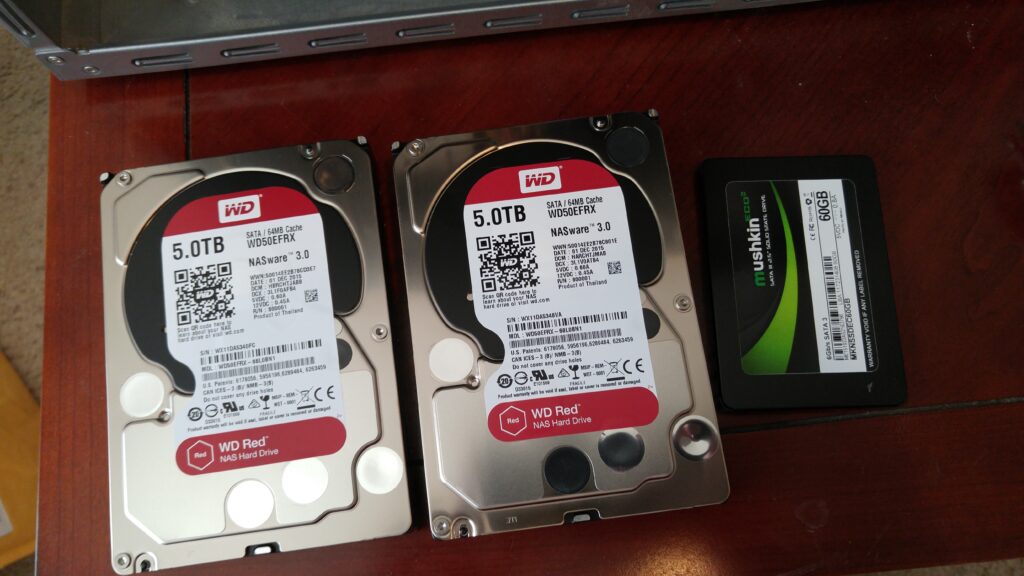
The cover is a general reference photograph of server storage devices, not the database server or test equipment used here. Photo: Andy Melton · original and usage terms · CC BY-SA 2.0. The original aspect ratio is retained; web display sizes and listing thumbnails may be adjusted.